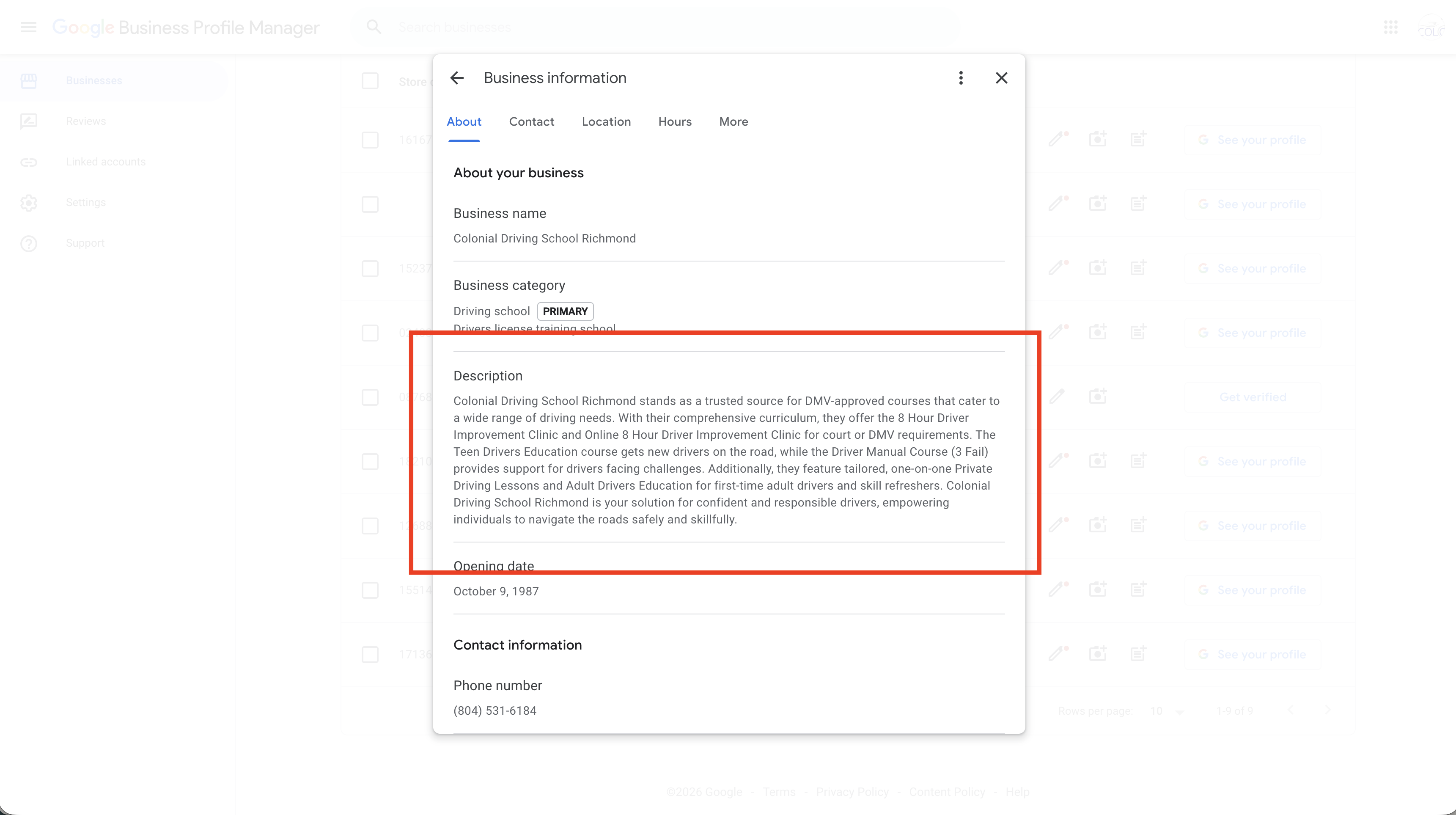
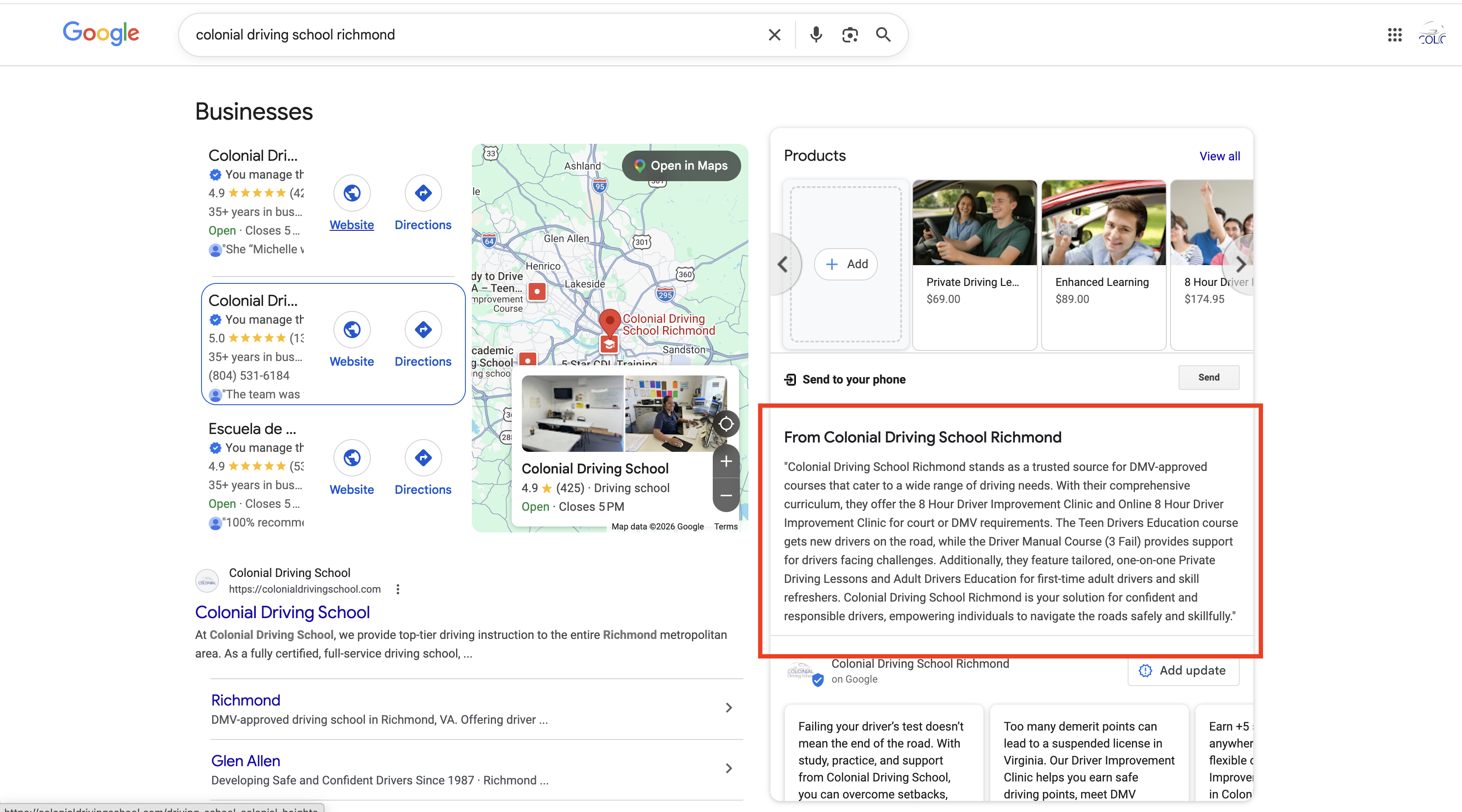
Write a Keyword-Rich Description
Your business description is a key local SEO signal. It helps Google understand what you offer, who you serve, and where you operate.
Use your full character limit and naturally include:
- Services — behind-the-wheel, online courses, test prep, driver improvement
- Audience — teens, adults, court-referred drivers
- Location — city + surrounding areas
Make Your NAP Consistent
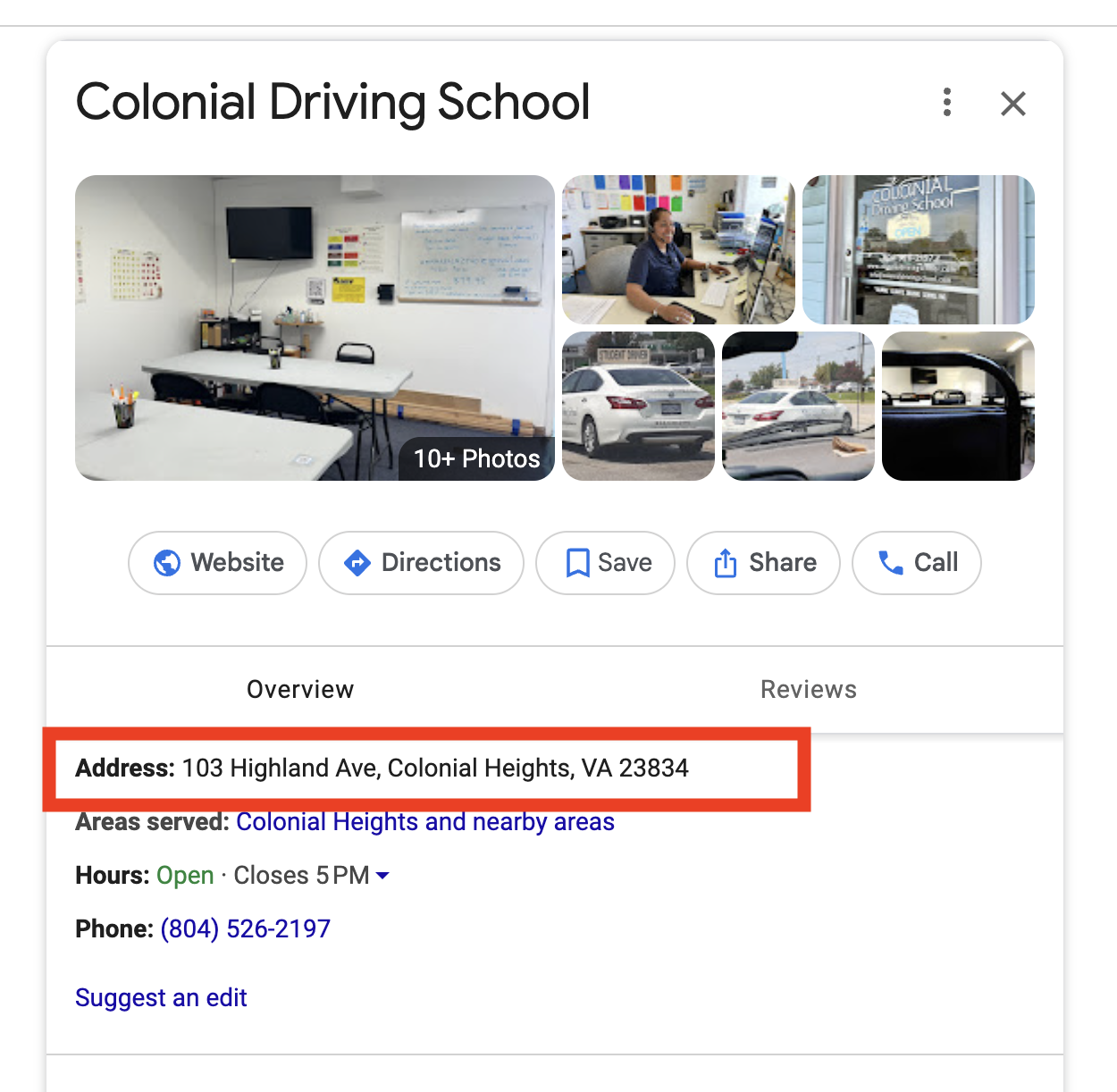
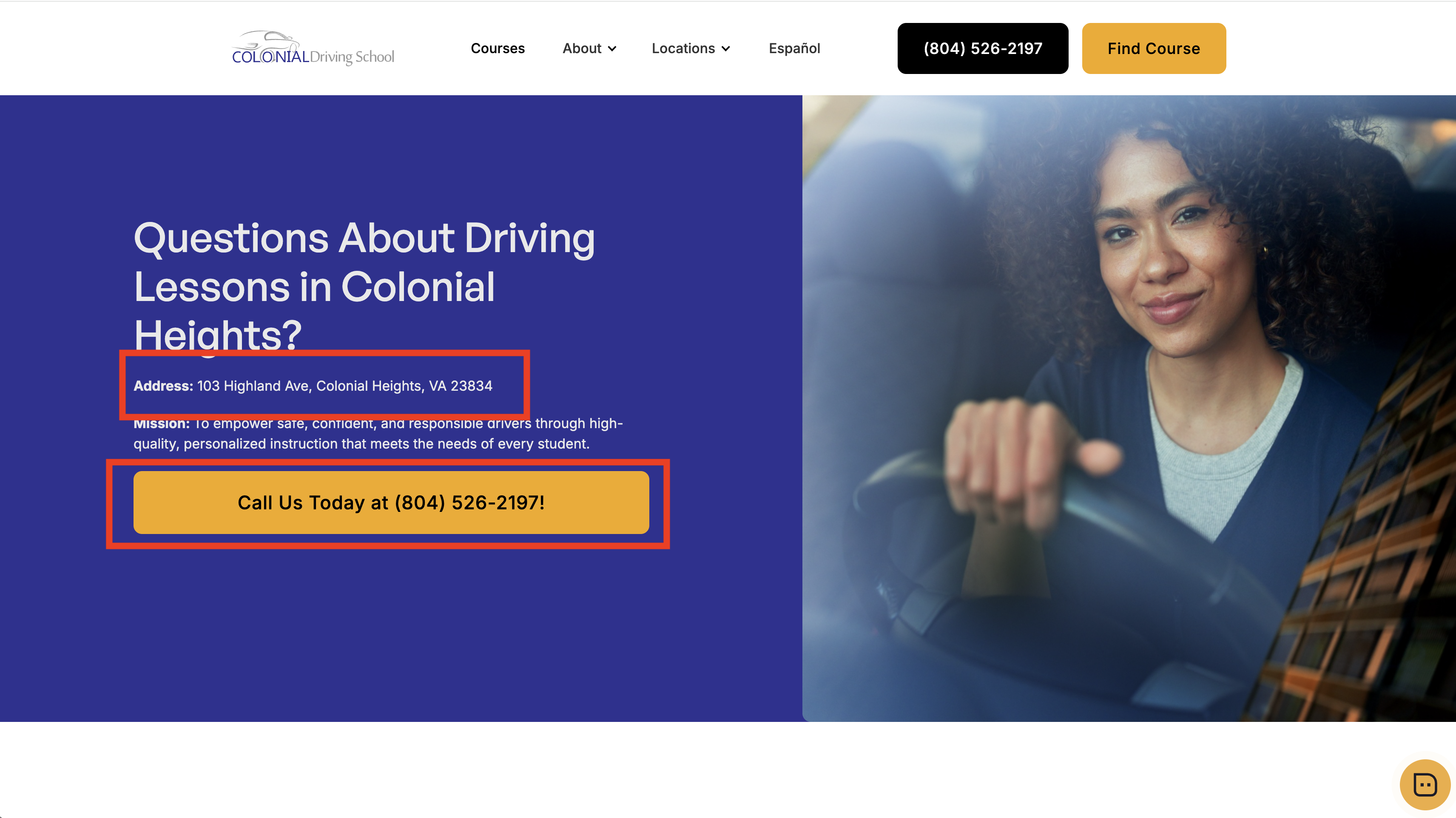
NAP stands for Name, Address, and Phone number. Google cross-references your NAP across your website, your Google Business listing, and other directories. If they don't match exactly, Google loses confidence in your listing and may rank you lower.
Make sure the following are identical everywhere:
- Business name — use the exact same name on your website, Google listing, and any other directory (Yelp, Facebook, etc.)
- Address — same format everywhere (e.g., don't use "St." in one place and "Street" in another)
- Phone number — same number with the same formatting
Check your website footer, contact page, and any other online listings. If anything is inconsistent, update it to match your Google Business Profile exactly.
Choose the Right Categories
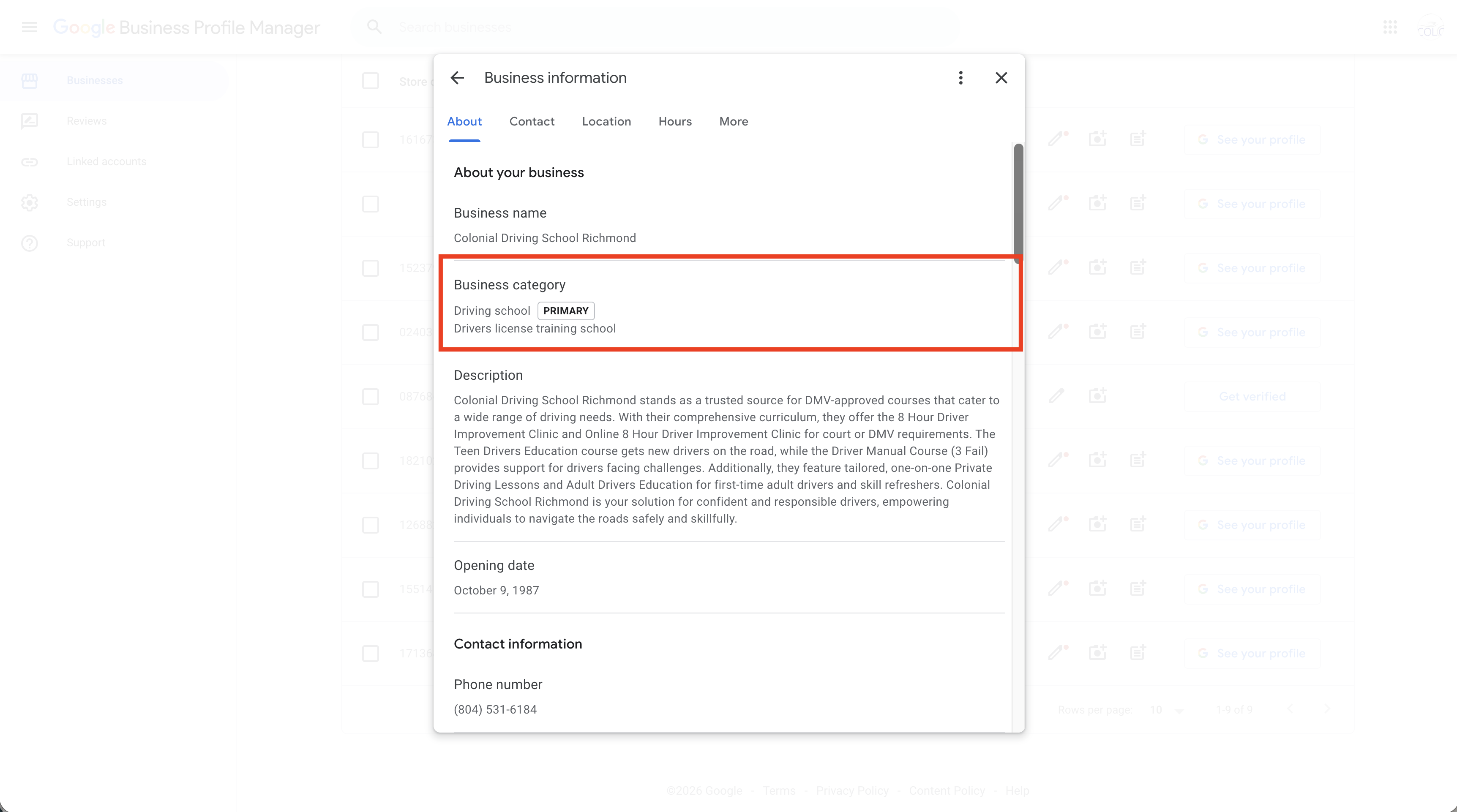
Your primary category is the single most important ranking factor for Google Business Profile. Choose "Driving School" as your primary category and "Drivers License Training School" as your secondary category.
Set Your Service Area
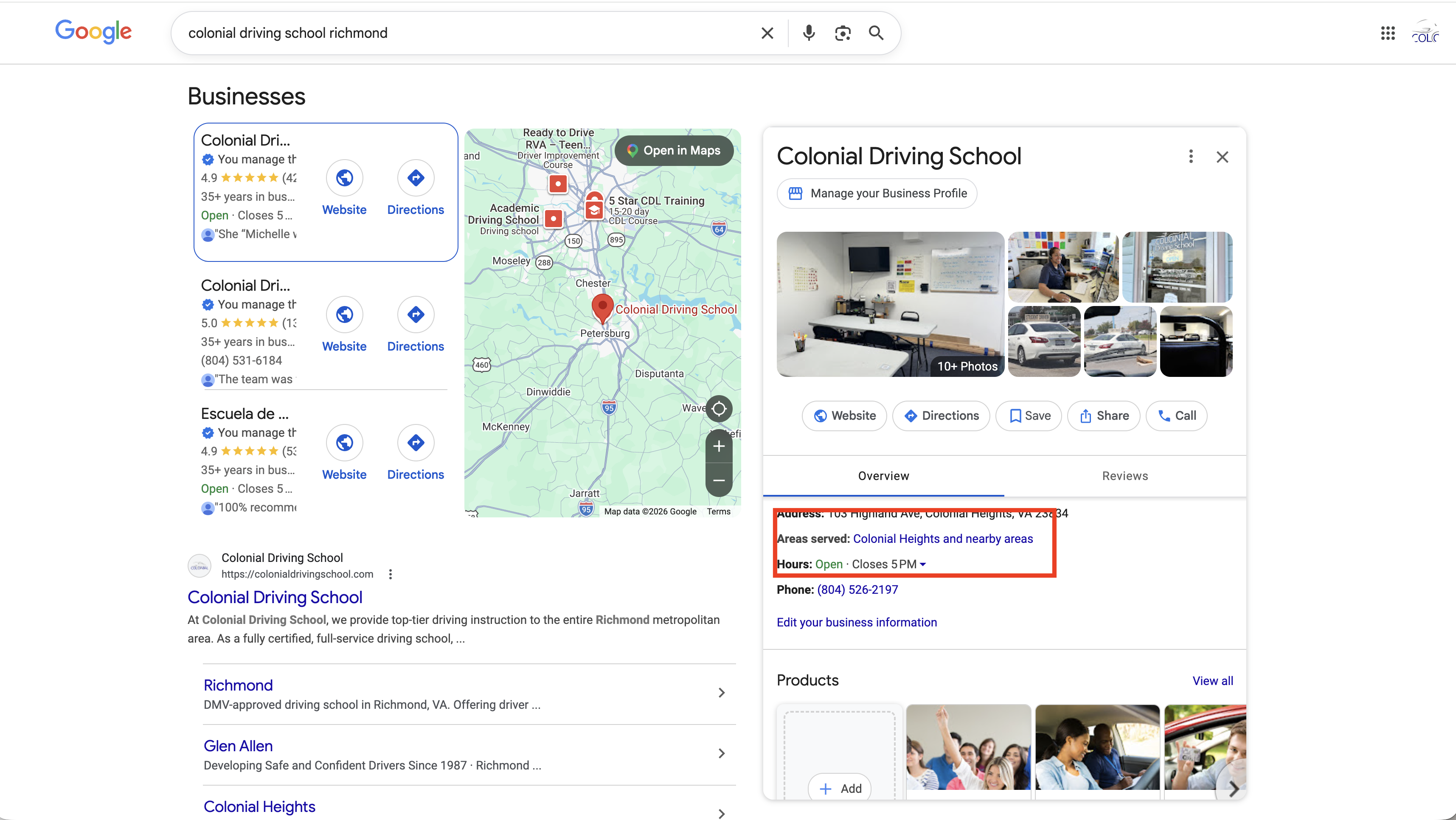
Driving schools often serve students across a wide area, not just walk-ins at a single location. Google lets you choose between two models:
- Storefront — Use this if students come to your physical location. Your address will show on your listing.
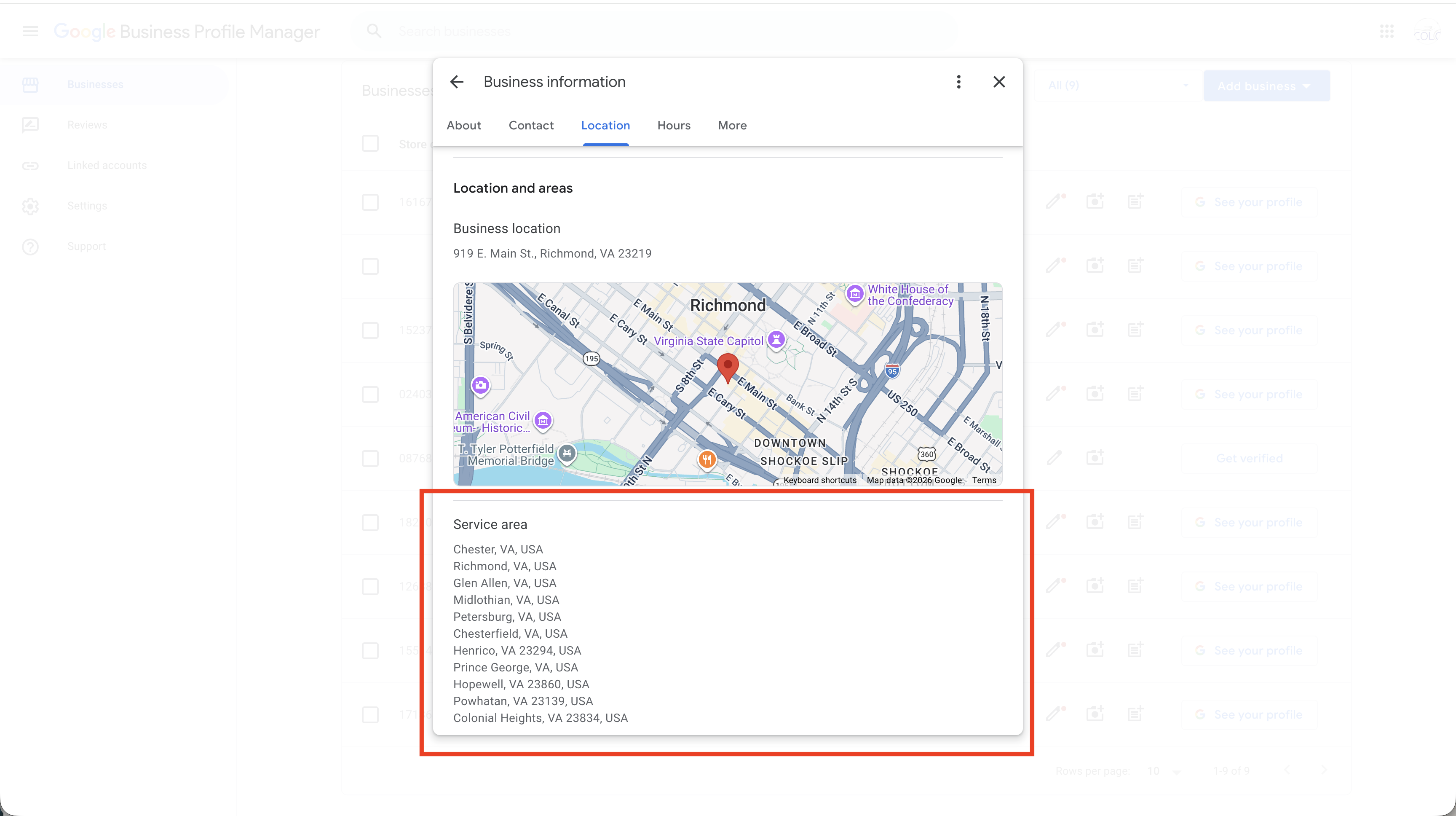
- Service area — Use this if you go to students (e.g., pick up for behind-the-wheel lessons). You define the cities and counties you cover, and your address stays hidden.
Many driving schools use both — they have a physical office but also travel to students. In that case, set your storefront address and add service areas on top of it.
Set Business Attributes
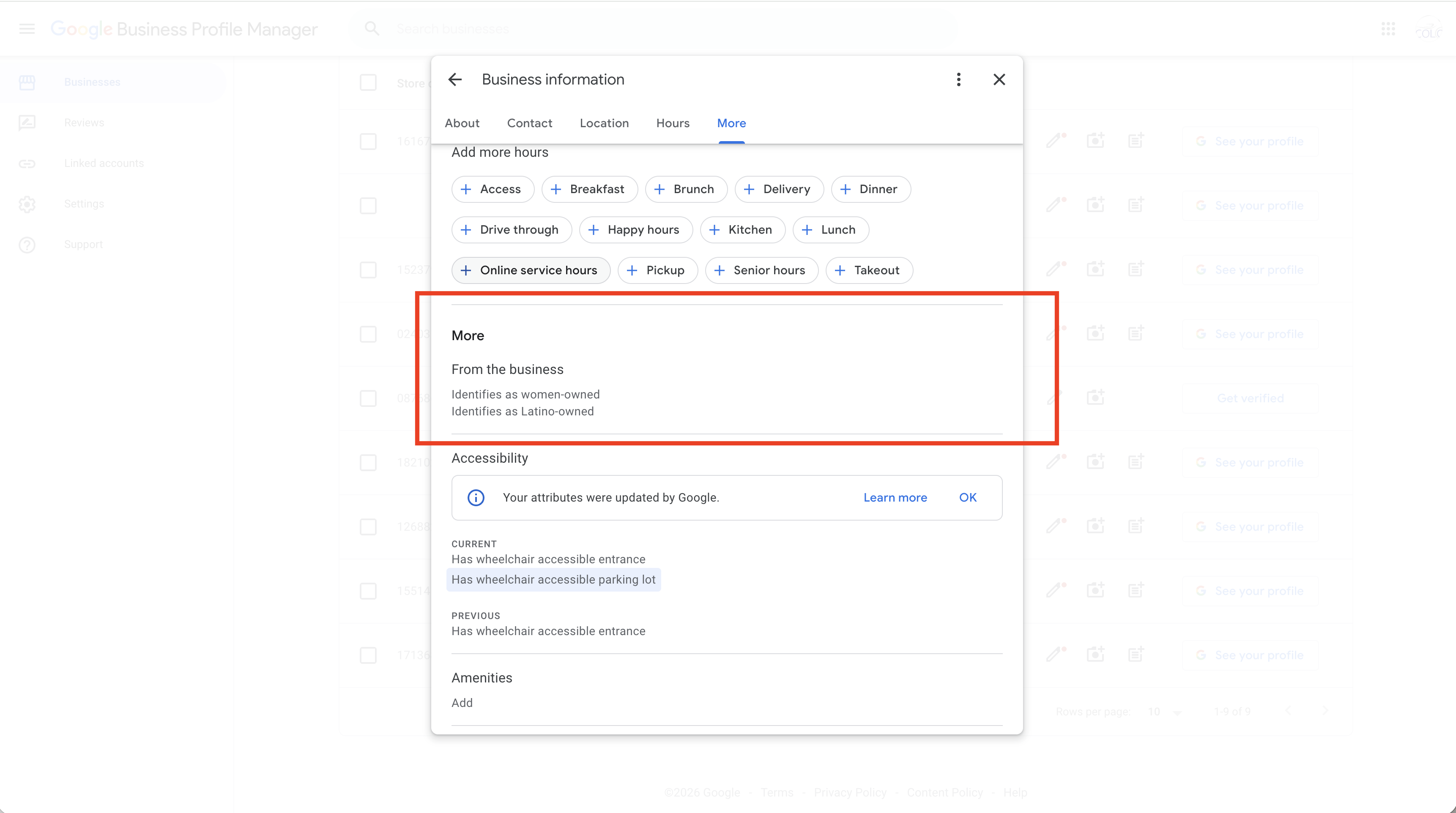
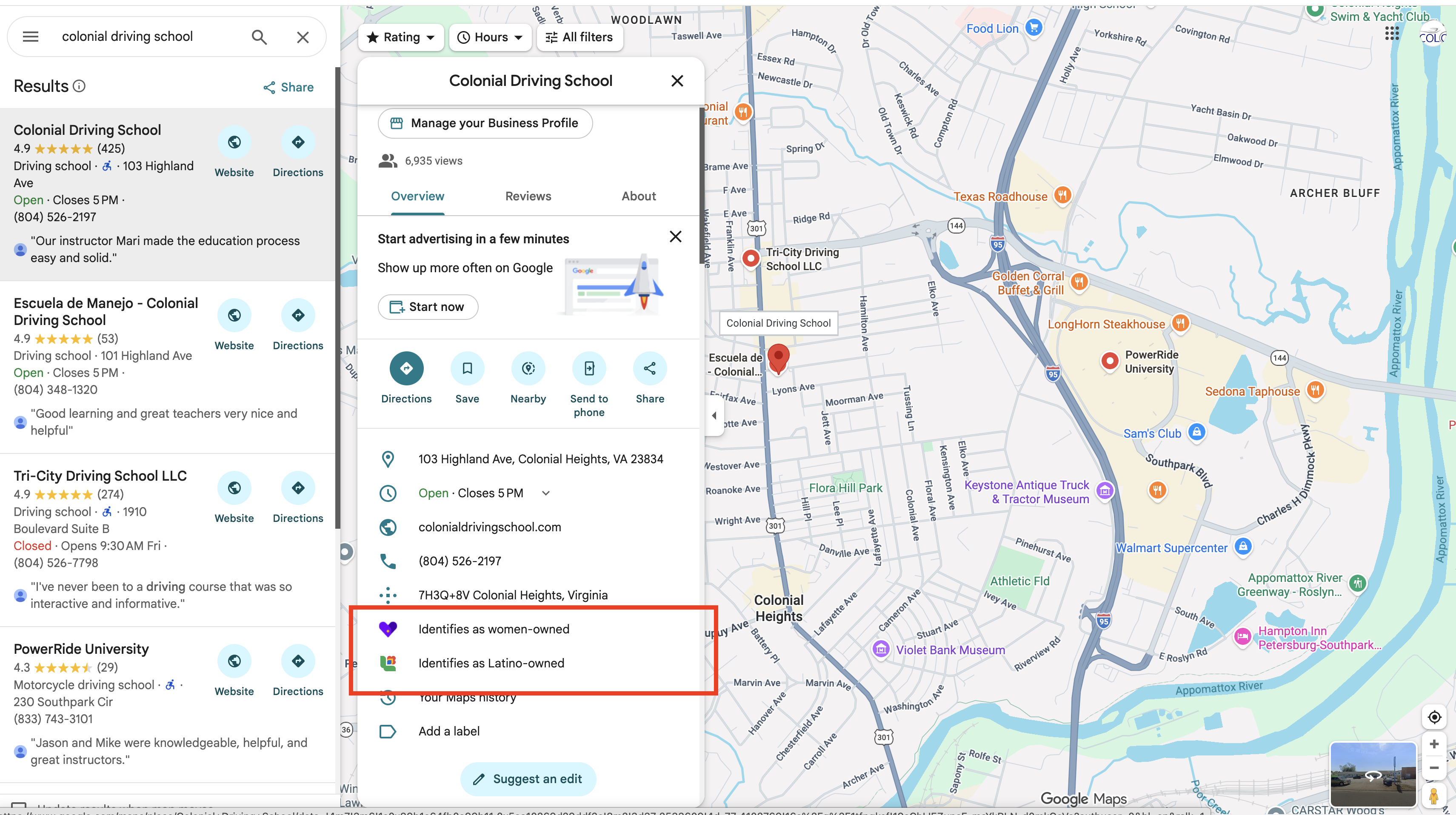
Google Business Profile lets you highlight special characteristics about your business. These attributes appear as badges on your listing and can help you stand out in search results.
Attributes relevant to driving schools include:
- Minority-owned — identifies your business as minority-owned
- Women-led — highlights women in leadership
- Veteran-owned — identifies veteran ownership
These attributes build trust and help customers choose your school. If any of these apply to your business, check them off — many driving school owners skip this section and miss an easy win.
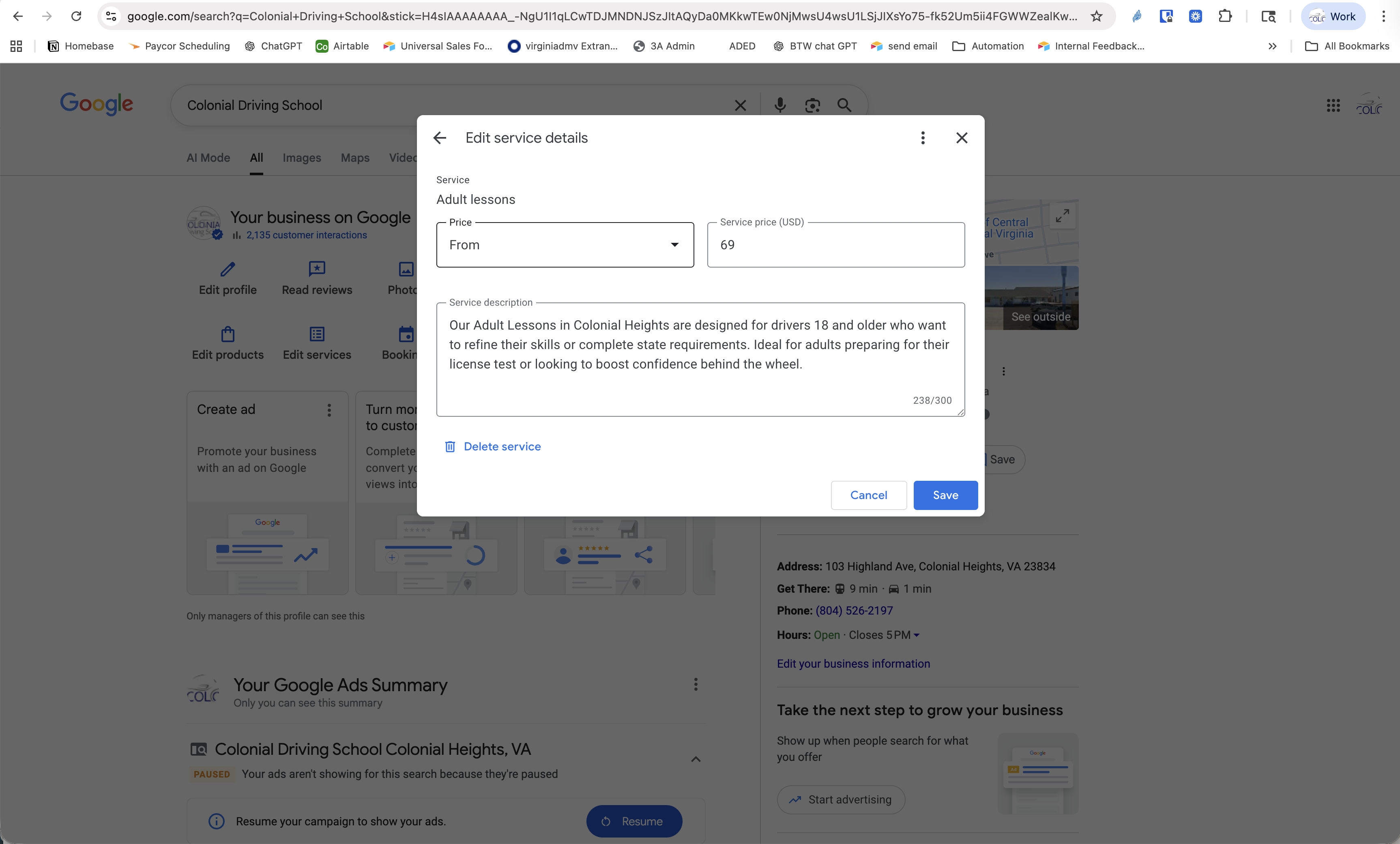
Add Your Services
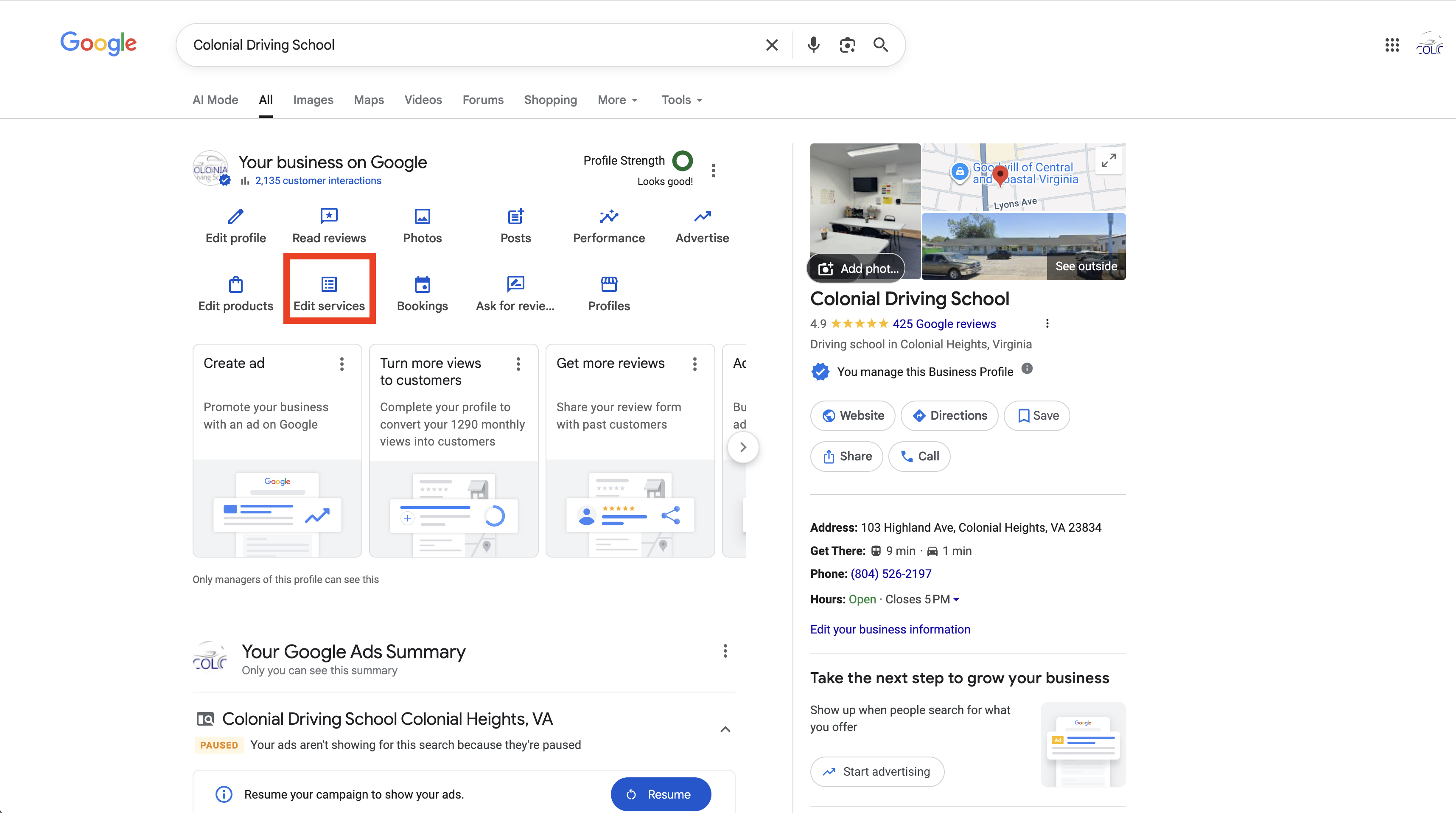
The Services section lets you list every service your driving school offers, along with a description and optional price. This gives Google more content to match against searches and gives potential students a clear picture of what you provide.
Services to add for a typical driving school:
- Behind-the-Wheel Training
- Classroom Driver Education
- Online Driver Education
- Road Test Preparation
- 8-Hour Driver Improvement Clinic
- Adult Driver Education
- Teen Driver Education
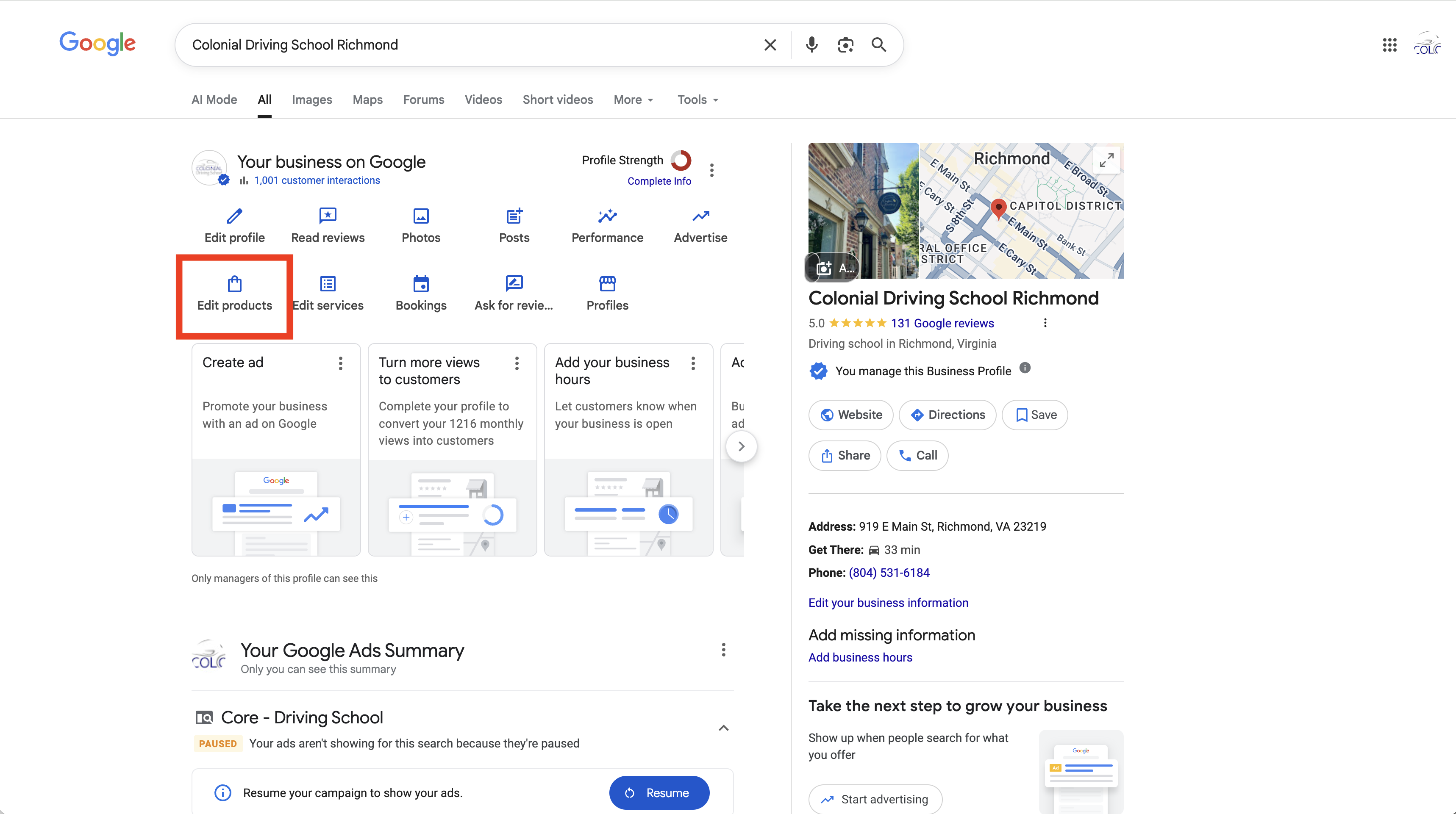
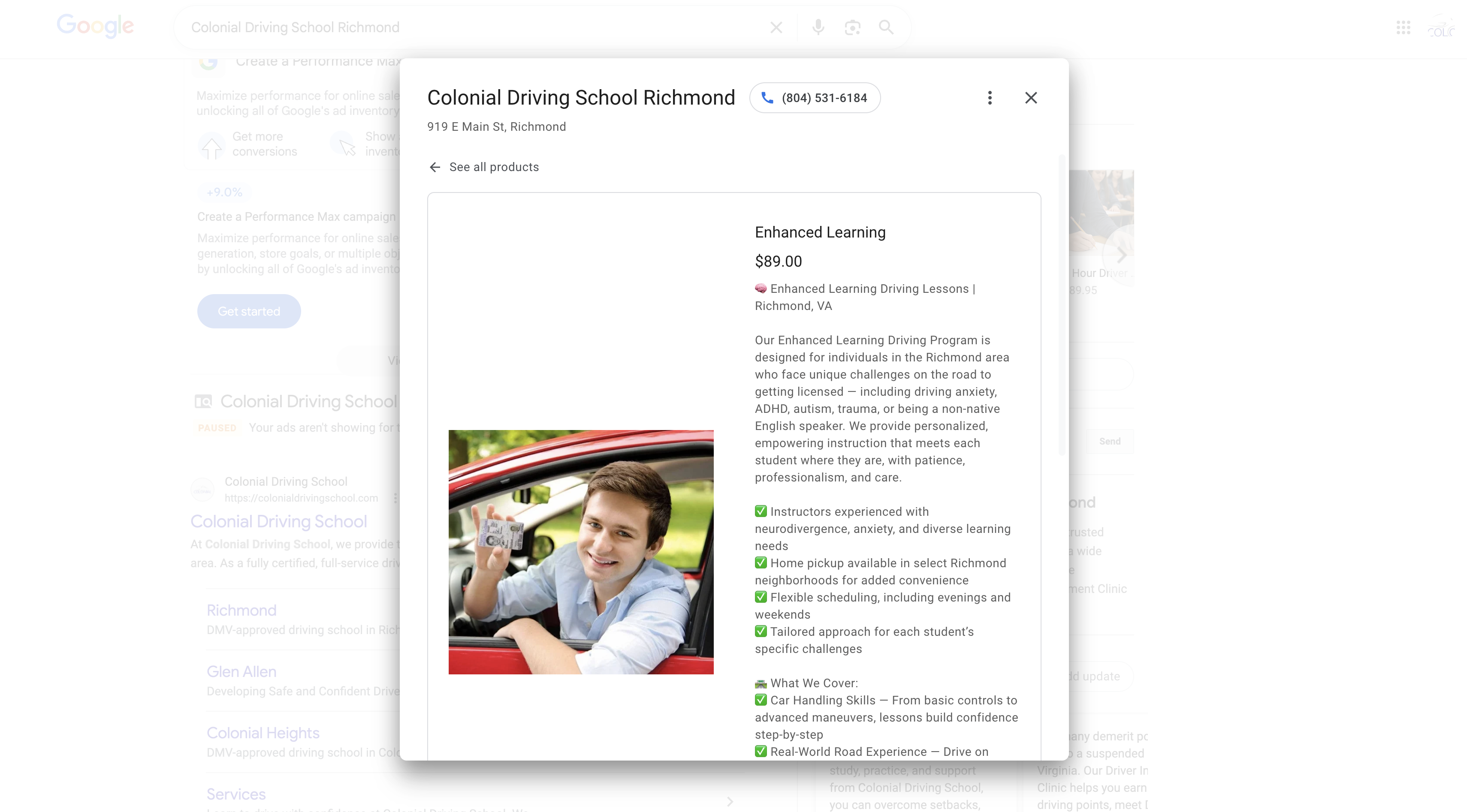
Add Products with Links
Google's Products section is separate from Services and gives you a powerful advantage: each product can include a direct link to a page on your website. This drives traffic straight from your Google listing to your enrollment or course pages.
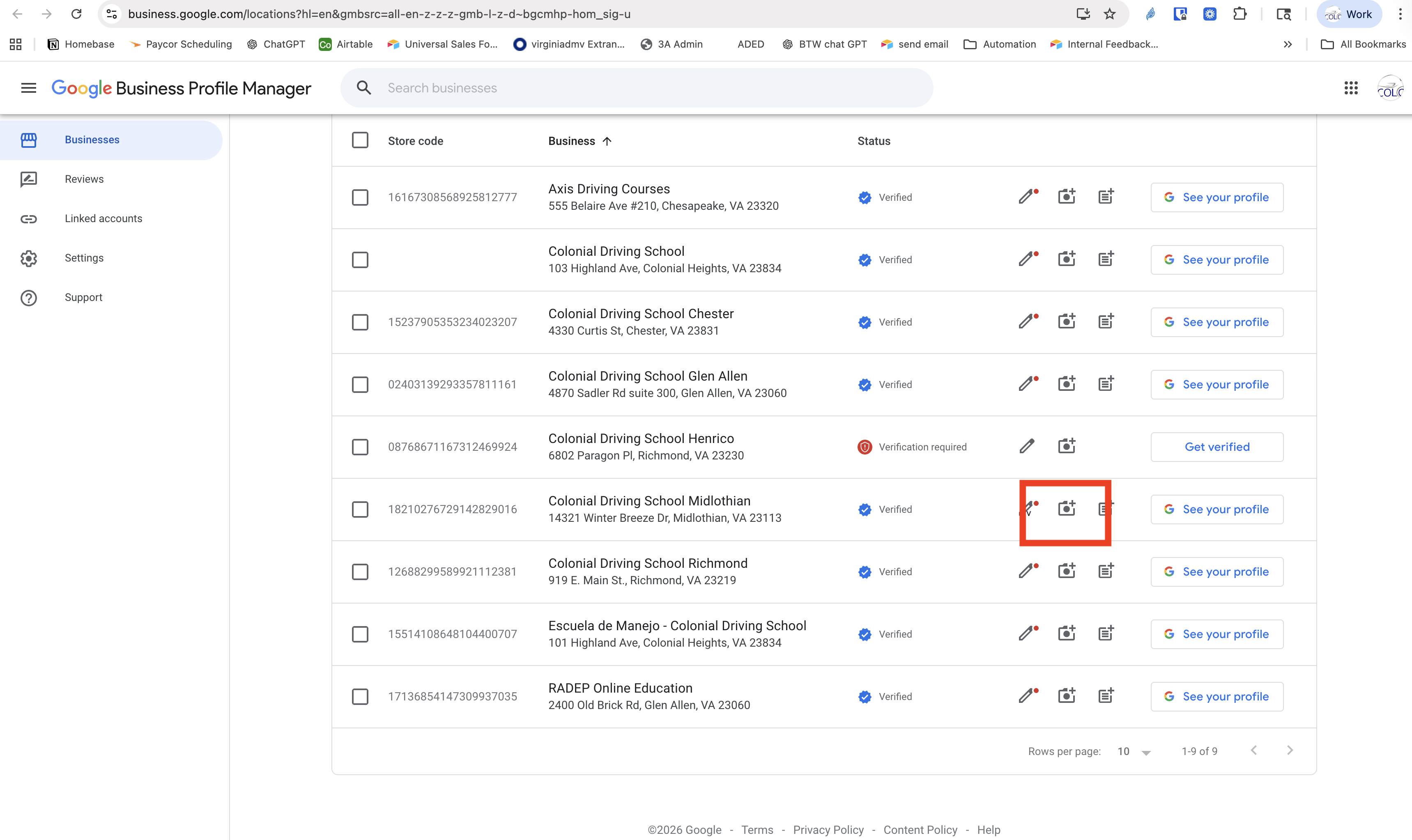
Upload Photos & Videos
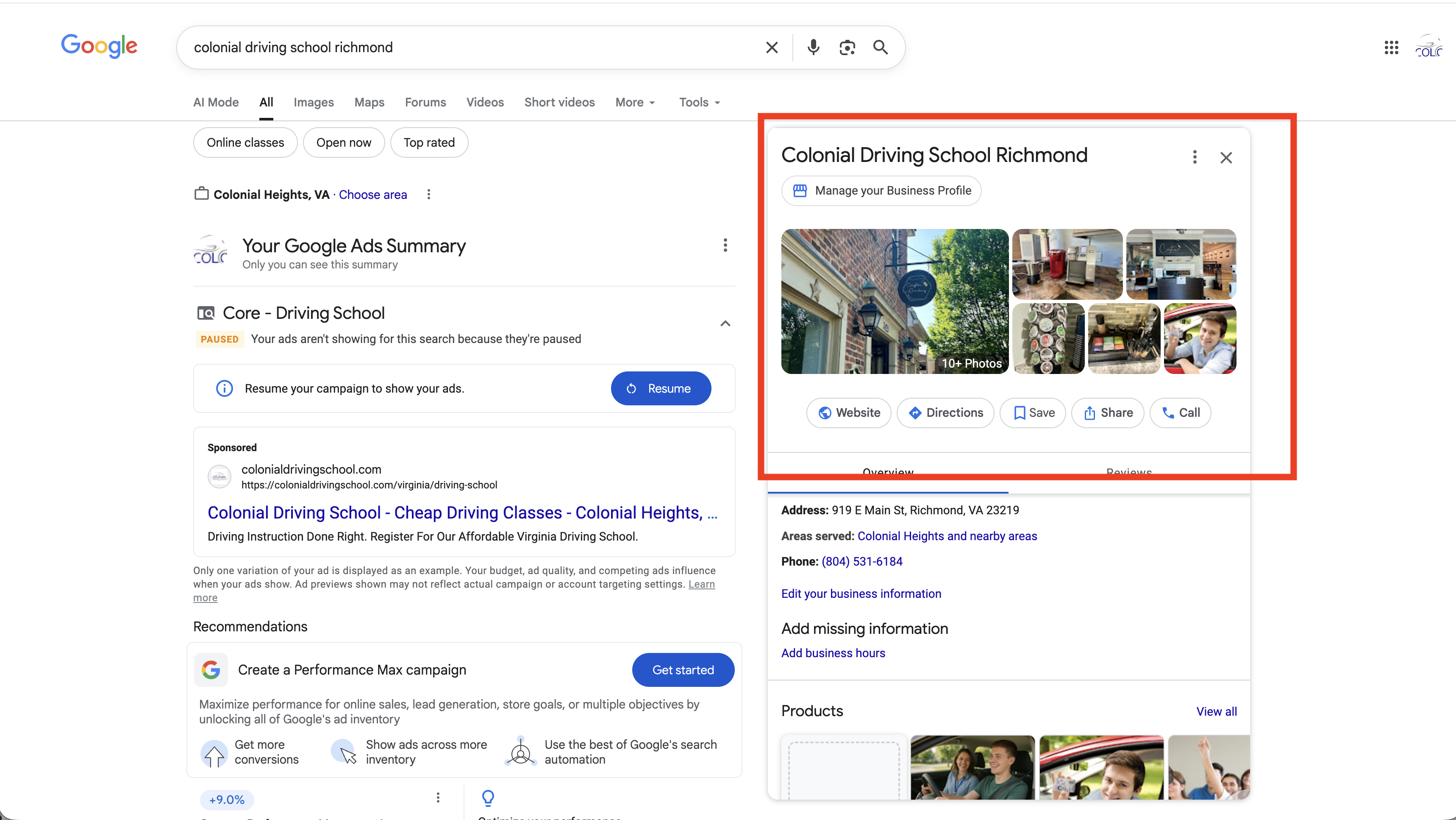
Listings with photos get 42% more requests for directions and 35% more click-throughs to websites than those without (Google data). For driving schools, photos make your business feel real and trustworthy to parents and students who are comparing options.
Manage Your Reviews
Reviews are a major ranking signal for Google and the #1 factor customers use when choosing between driving schools. Responding to reviews shows potential students that you're engaged and professional.